Tutorial 7 of 48
Table themes, portraits, sounds and animations
Beginner 4 min
Pick a table theme or let Playcards choose one, see a portrait for every player, get names that fit each portrait, and set up sounds, music and animations.
Every Playcards table has a look of its own. This tutorial shows how themes work, where the portraits come from and how to adjust the sounds, the music and the animations.
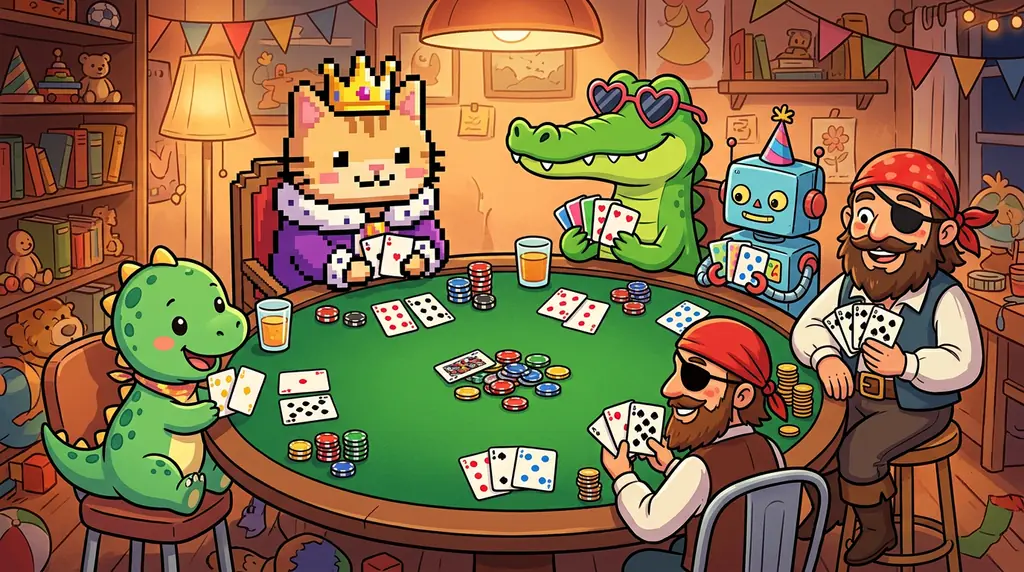
One theme per table
When you set up a game, Playcards picks one of 16 themes for the table: cool 80s people, 8-bit cats, crocodiles with sunglasses, friendly robots, Vikings, pirates, a space crew, pixel knights, watercolour birds, film noir, sock puppets, dinosaurs, samurai cats, fairy tale, synthwave and steampunk.
A theme changes the whole table at once: the picture behind the table, the card backs, the paper, frame and corner letters of the card faces, the felt, the colour of the dealer chip, the sound of the table and its background music. The picture behind the table stays soft and pale, so the text on top of it is easy to read. The suit colours stay easy to read in every theme, and suits still differ by shape and letter.
On the start page, Table theme shows the theme of the next table. Choose Random theme for every table or one theme you like; New faces deals new portraits (and new names for the computer players) without changing anything else. The same setting is in Help → Settings; the line under it tells you which table it changes. If you change the theme there while you play at a table on this device, the table switches at once — card backs, felt, portraits and music — and the game goes on. On the start page the next table follows the new setting right away.

Portraits and names
Every seat gets its own portrait from the table's theme, and no two seats share one. Computer players get a name that fits their portrait — the samurai cat in the red helmet may be Tora or Akane, the old pirate with the eye patch Grizzle, the white-braided Viking woman Gudrun. People keep the names they typed in.
The portraits react to the game. A player who wins a trick or makes a call like “Mau” cheers for a moment; at the end of a round the winners cheer and the others pull a grumpy face. In between, a portrait now and then breathes, tilts its head or bobs a little. These are pictures only: screen readers hear the moves as before, and nothing extra is announced.
Around the table you see the portraits with the names: you sit at the bottom, the other players sit around the felt in playing order. Under every other player's portrait lies their hand as a small fan of face-down cards in the table's card back, so you see at a glance who holds many cards and who is nearly out; the fan grows and shrinks with every card they play or draw, and big hands of 13 or more cards overlap more tightly. Only the backs are shown, never the faces. A ring marks the player whose turn it is, a small D chip marks the dealer, and short speech bubbles show what a player just said, such as “passes.” or “Re!”. Before every move a computer player thinks for two to four seconds: a small Thinking… bubble with hopping dots sits over its portrait, and the portrait sways and glances around. Now and then a thinking player lifts one of its cards a little and puts it back, as if it were tempted and changed its mind. That card is picked at random: it gives nothing away about the card the player will really play. If you would rather not wait, set Computer thinking time to Quick in Help → Settings (online tables always use the natural time). Screen readers hear every move in the move announcements, as before, plus “… is thinking…” once per turn, and each portrait has a description.
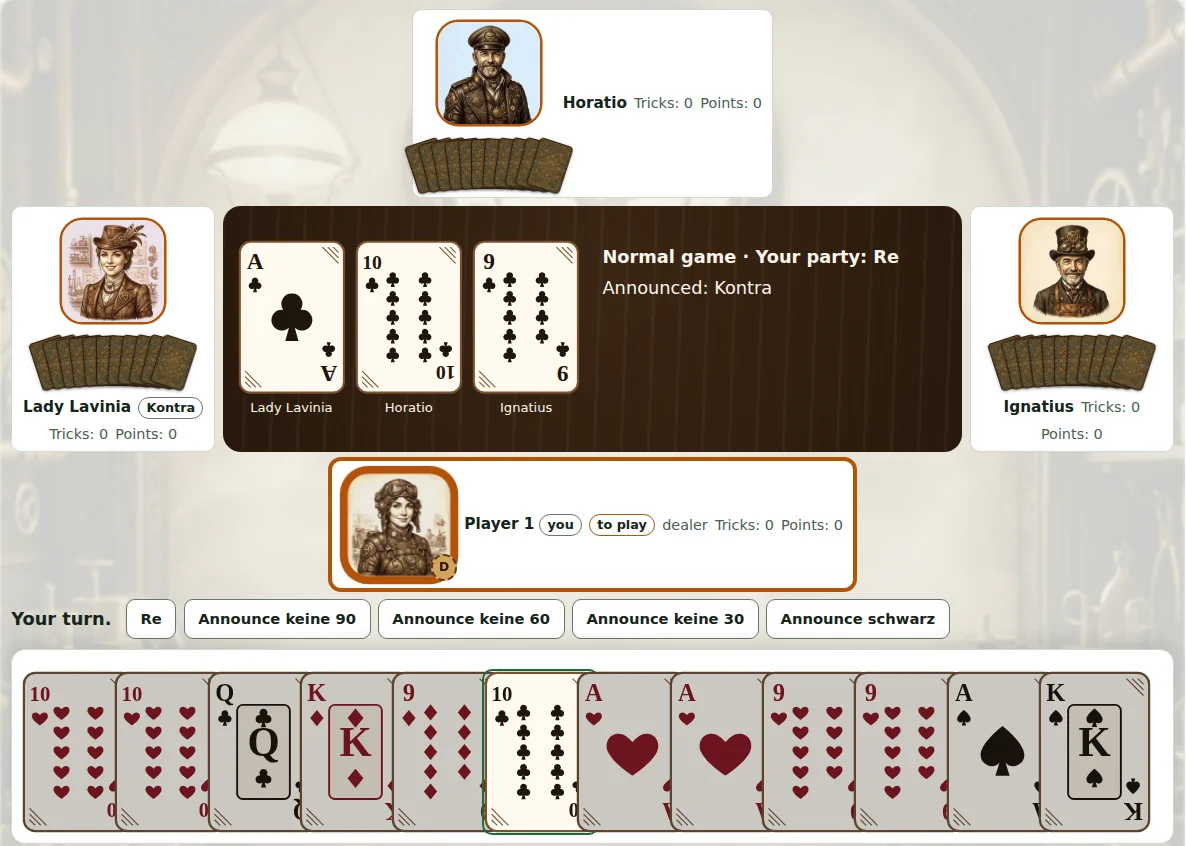
At an online table the server gives out the theme and the portraits, so you and your friends see the same faces and names. The host's theme setting decides the theme.
Sounds
The table sounds are short recordings made for Playcards with ElevenLabs (Sound effects: ElevenLabs): a riffle shuffle, cards dealt onto the felt (several slightly different ones), a card placed, slapped, slid or flipped over, a trick gathered, chips and coins, two knocks on the table, a short fanfare for a win and a comic “wah-wah” for a loss, a chime for a new round and now and then soft finger taps while someone thinks. They are downloaded once, the first time a sound plays; until then, and whenever they cannot be loaded, Playcards synthesises the same sounds. Calls, chat reactions and the soft chime when it has been your turn for a while are still made live, and each theme gives them a slightly different sound.
The players also call out, in the game's own language, the way people do at a real card table (Voices: ElevenLabs): “Mau!” and “Mau-Mau!”, “Ich muss aussetzen.”, “Kontra!” and “Re!” in Skat and Doppelkopf, “Ik toep!” in Toepen, “Бито!” in Durak, “Scopa!”, “¡Escoba!”, “Truc!”, “八切り!” in Daifugō, “Gin!” and “Go fish!”, and more. Six voices — three women and three men, from young to older — are given out to the seats to suit the portraits, so the same player always sounds the same. Every call also appears as text in the player's speech bubble. Big calls always sound; routine ones such as “Passe.” or “Ich muss aussetzen.” keep a few seconds apart, and at the end of a round a player sometimes laughs, cheers, groans or sighs (these have a caption in your language, such as “(laughs)”). With Quick thinking time only the game calls remain.
Every theme also has its own quiet background music, a composed loop of about a minute (Music: composed with ElevenLabs): warm synths for the 80s and synthwave tables, chiptune for the 8-bit cats and pixel knights, a sea shanty for the pirates, late-night jazz for film noir, slow pads for the space crew, koto and flute for the samurai cats, a music-box waltz for the fairy tale and more. Each loop flows back into its start without a break, it is downloaded only while the music is on and a table with that theme is on screen, and it gets quieter for a moment when the win or loss tune plays. If a track cannot be loaded (for example offline or with data saving switched on), Playcards plays a simpler synthesised tune instead.
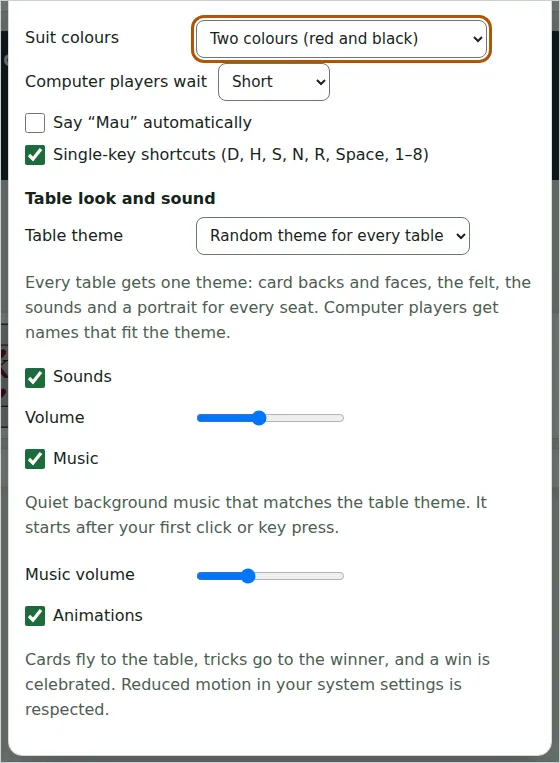
Sounds, voices and music start only after your first click or key press on the page and are silent while the tab is in the background. The quickest way to silence them is the toolbar: Music mutes the background music and Sound effects mutes the table sounds (keys M and E); press again to turn them back on. If you mute the music before your first click, it never starts. In Help → Settings, switch Sounds off or set the Volume (40 % at the start), switch Music off or set the Music volume (30 % at the start), and switch Voices off or set the Voices volume (60 % at the start).
Animations
Cards are dealt from the deck to the seats, fly from a player to the middle when they are played, go to the winner of a trick and turn over when they are revealed. A win gets a short confetti burst. The cards move at a relaxed pace, so you can follow every card; Animation speed in Help → Settings switches to Normal or Fast.
The animations never slow the game down: a new move simply cuts them short. Switch them off with Animations in Help → Settings. The table grows with your window — cards, portraits and seats are bigger on a large screen — and Full screen in the toolbar (key F, Esc to leave) hides everything else. If your system asks for reduced motion, new cards only fade in, there is no confetti, the portraits change their faces without moving, the Thinking… bubble stands still and nobody lifts a card while thinking (with Quick thinking time there is no time for it either).
For saving tables and the statistics, see Saved tables, statistics and AI tools.
Ready to try it?